 CostGator
A store-wide discount looks simple. You set 25% off, the sale starts, orders come in. The catch is that a flat discount hits every product the same way, while your margins are not the same. A product with a healthy margin absorbs 25% easily. A product that is already on sale, or was cheap to begin with, can end up selling below what it cost you. You usually find out after the orders are in.
This guide shows how to check that before the sale starts, using the cost data WooCommerce can already store and the free CostGator plugin.
Why a flat discount is risky
Take a product with a regular price of 40, a unit cost of 26, and a running sale of 20%, so it sells for 32 today. Prices here are net of tax.
- If the Black Friday discount of 25% replaces the running sale, the price is 30. The margin is (30 - 26) / 30, about 13%. Thin, but above cost.
- If the 25% stacks on top of the running sale, the price is 24. That is 2 below the cost on every unit sold.
The same discount gives two very different results, depending on how it combines with sales that are already running. With a few hundred products, checking this by hand is not realistic.
Step 1: Give your products a cost
No tool can tell you a price is below cost if it does not know the cost. WooCommerce has a built-in Cost of Goods Sold feature for this, and it is turned off by default.
- Go to WooCommerce > Settings > Advanced > Features.
- Tick Cost of Goods Sold and save.
- Open a product. The General tab now has a Cost of goods field. Variations can have their own cost.
Enter the unit cost net of tax, in your store currency. If you have many products, start with your best sellers and the products you plan to discount the most. Those carry most of the risk.
If you already use the Cost of Goods plugin by WPFactory or by SkyVerge, you can skip this step. CostGator reads the costs those plugins store.
Step 2: Install CostGator and run a scan
Install CostGator Margin Audit for WooCommerce from WordPress.org. It is free and read-only. It never changes prices, products, orders or coupons, and it makes no external requests.
Go to WooCommerce > CostGator. First set your minimum margin in the settings on that page and save it. The default is 10%. Products that are not below cost, but below this margin, are reported as low margin.
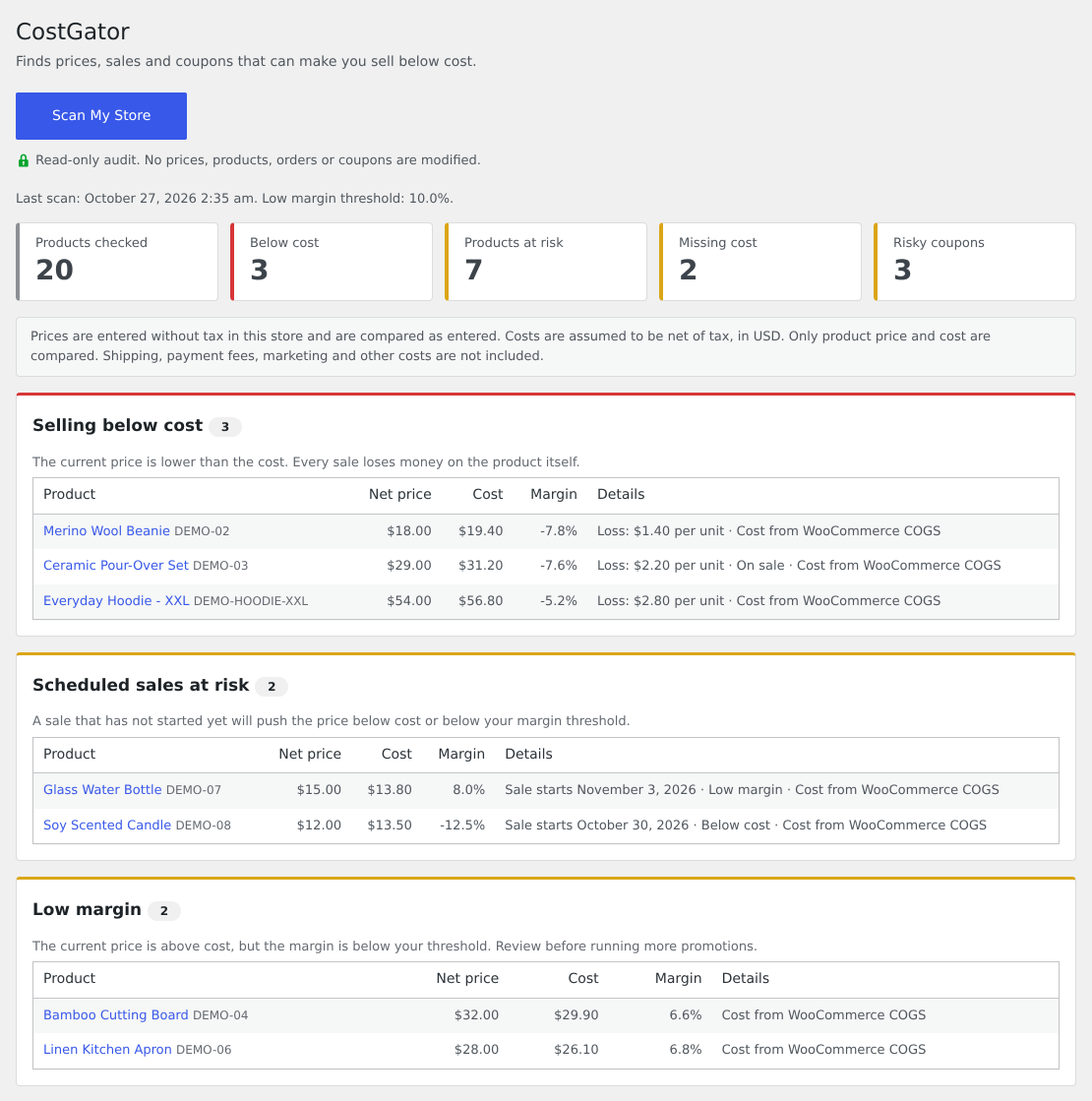
Then click Scan My Store. The scan checks your published simple products and the enabled variations of published variable products. It runs in small batches from your browser, so keep the page open until it finishes. If you change the minimum margin later, scan again.
Step 3: Check the discount with Promotion Preflight
Below the scan results you find Promotion Preflight. Enter the discount you plan, then choose what it applies to:
- Current price (on top of running sales), if the Black Friday discount will stack with sales that are already running.
- Regular price (replacing running sales), if it will replace them.
Click Check promotion. You get a summary line, for example "With 25.0% off: 3 below cost, 7 below threshold, out of 120 products with a known cost." Below it, a table shows the promo net price, the cost and the margin of the affected products. The table shows up to 100 rows, the counts in the summary include all of them.
Preflight uses the data of the last scan. If you change prices or costs, run the scan again before you check.
Step 4: Look at coupons and scheduled sales too
Black Friday is rarely one discount. The scan also reports:
- Scheduled sales at risk: sales that have not started yet, but would put a product below cost or below your margin when they do.
- Risky percentage coupons: coupons that would leave eligible products below cost or below your margin. Product, category and sale item restrictions are respected.
- Missing cost information: products that cannot be checked because they have no cost.
Step 5: Fix what you find
For each product on the list, you have a few options. Exclude it from the sale, give it a smaller discount, or if you replace sales instead of stacking, check again with that setting. For coupons, exclude the affected products or categories.
Preflight applies one discount to every product with a known cost. It does not know which products you excluded from the sale, so those still appear in its results. Keep a note of the products you have dealt with, and use the scan results for the changes you made in the store itself, such as sale prices and coupon exclusions.
What this check does not cover
CostGator compares product price with product cost. It is not a full profit calculation, so keep these limits in mind:
- Shipping, payment fees, marketing and other costs are not included.
- Products without a cost are listed under missing cost, but left out of the margin checks and Preflight. A cost of 0 counts as missing.
- Products without a usable price are not audited.
- Each check stands alone. Preflight, scheduled sales and coupons are each checked against their own price. A coupon used during a Black Friday sale, on top of the sale price, is not checked as a combination. If you plan that, test the combined discount in Preflight, for example 25% and then 10% is about 32.5%.
- Coupon checks show potential risk. Minimum spend, customer restrictions and coupon combinations are not evaluated, and fixed amount coupons are not analyzed.
- If your prices include tax, they are converted to net with your store base tax rates. Costs are assumed to be net of tax.
If your fees are significant, a higher minimum margin works as a rough buffer for them. It is not exact, because fixed fees per order and shipping do not scale with the price.
A short checklist for Black Friday week
- Costs entered for at least the products you will discount.
- Minimum margin set, with a buffer for your fees.
- Fresh scan, then Preflight with your planned discount, in the mode that matches how your sale works.
- Scheduled sales and percentage coupons reviewed.
- Fixes made, then one last scan the day before the sale starts.